
As you use Flo for Mac for the first time, you will no doubt discover some of the key features such as the Email and Calendar modules, the ToDo list, handy Notes, and Contacts. Here is a short list of things you can do with Flo for Mac that you might not discover right away, but which we are pretty sure you will absolutely love! Try them out. Let us know what you think. Comments welcome! Either respond here, or in the Feedback section at the top of the app.
Drag ToDo's into the Calendar
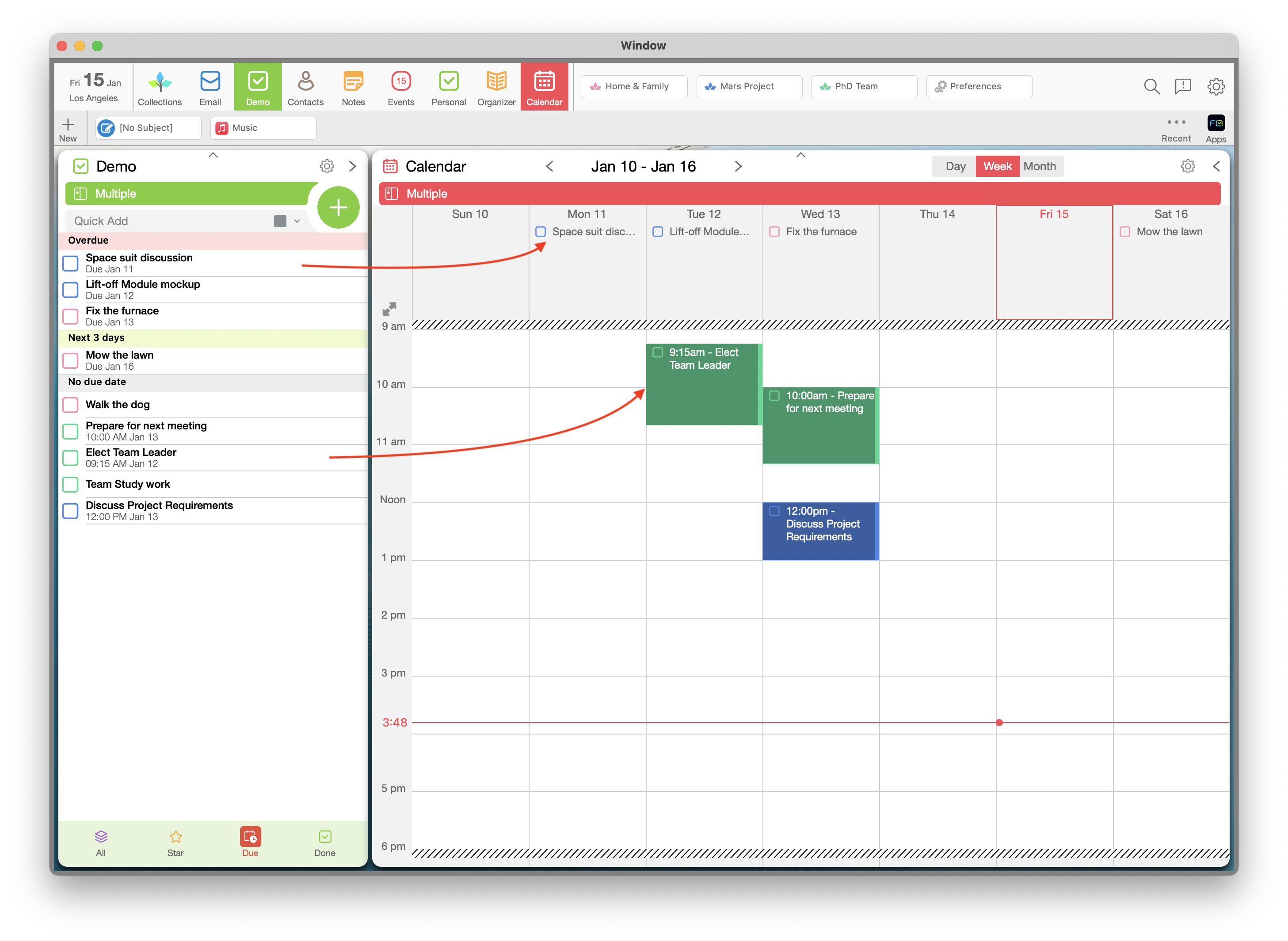
Dragging ToDo's into the Calendar either schedules them, or assigns a due date - depending on whether you drag them into the Month calendar or onto a timeline.
With the ToDo list open next to the Week Calendar, drag one or more selected ToDo's onto the Timeline.
[Tip] If you simply DROP them onto the Timeline, Flo schedules them for you - without overlapping any events!
[Tip] If you actually PLACE the on a specific time within the Timeline, the task gets scheduled at that specific time. In the timeline, you can change the duration of any task just by dragging the bottom.
With the Month Calendar open next to the ToDo list, drag one or more ToDo's onto any day will create a deadline for that task. If you use the 'Due' filter in the ToDo list, you can then see your tasks sorted by due. As you move tasks around the Calendar, their sort order changes in the To Do list!
[Tip] If you are limited for space, you can drag ToDo's directly into the small 'mini-month' calendar at the top of the ToDo list. If it does not appear, just enable it from the Settings icon at the top of the list.
[Note] Now, try dragging a Note into a Calendar! And an Email!
Track Your Emails
Flo's unique tracking system can tell you when you do NOT receive a response from someone. This means you can send off missives, and forget about it. Flo will tell you if someone doesn't respond, so you can stay on top of things. Just enable "Bear Track" from the Settings menu.
Short on Space? Use the Organizer
Flo Collections are a handy way to organize all of your Emails in one place. Or your ToDo's. Or your Notes. But what if you need to refer to multiple lists, while working on something else important? From "Collections", just open the Organizer! You can select which Flo Collections to show, from the bottom menu. Kind of looks like Flo's iPhone app, doesn't it? That's not by mistake!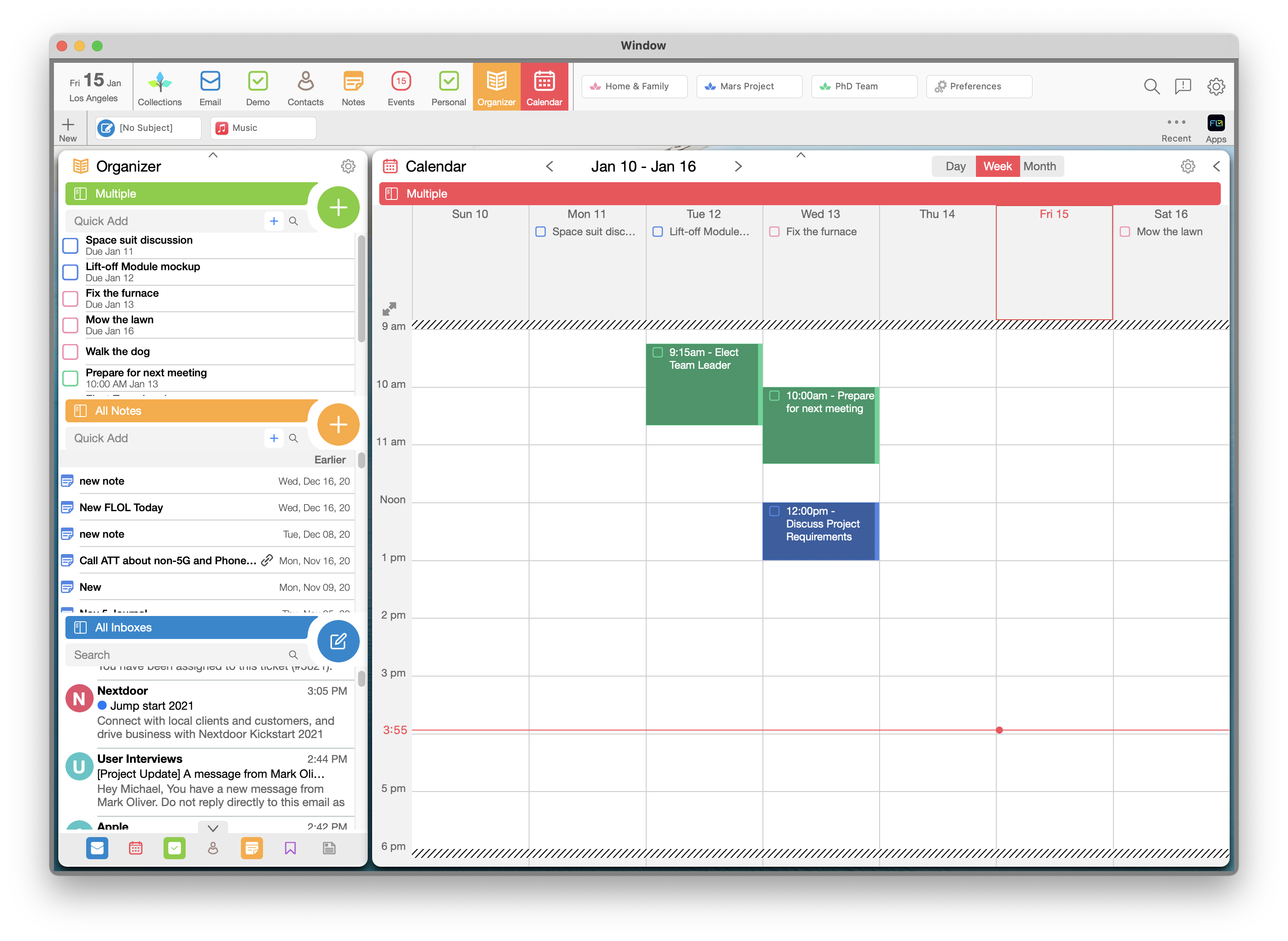
Quick View, Quick Actions
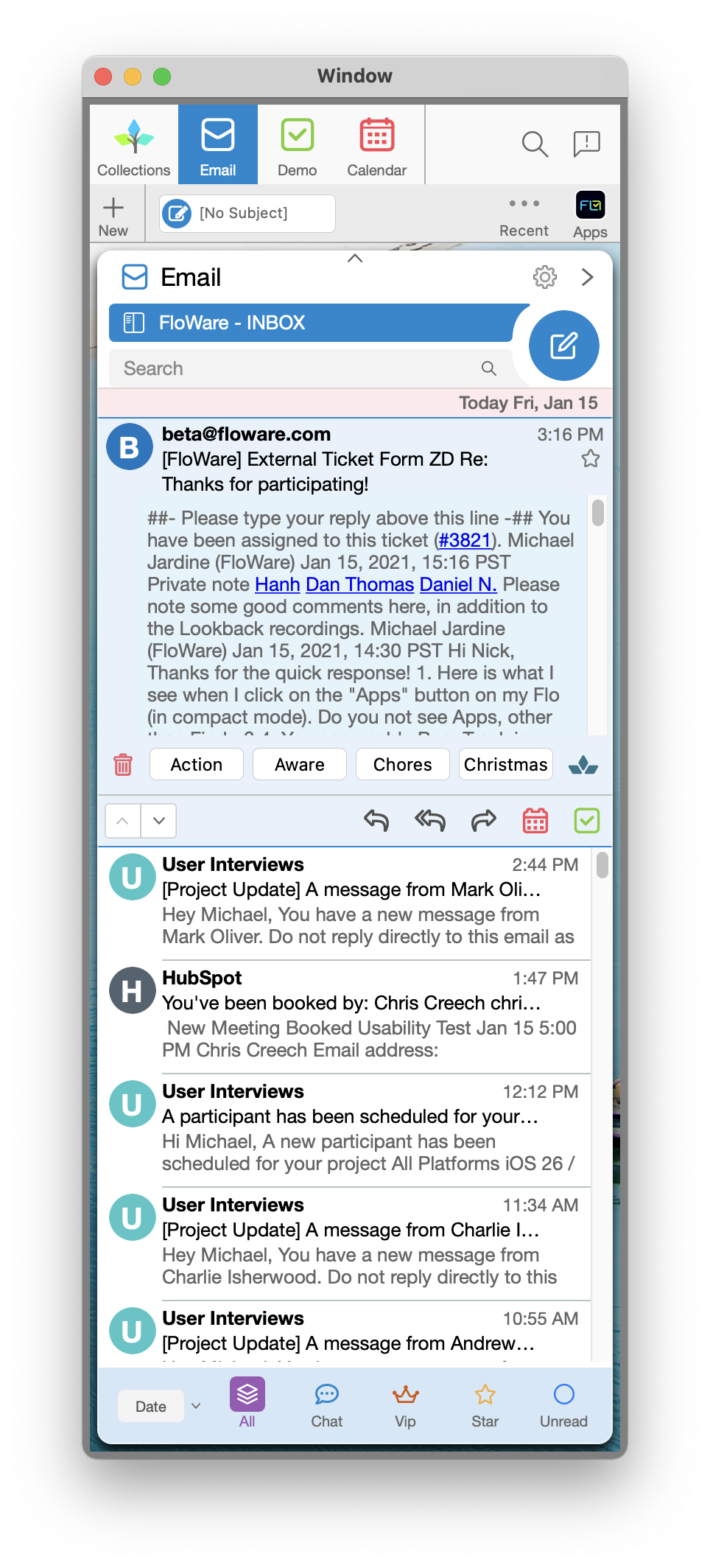
Try out the Quick View feature in all Flo Collections. This is especially useful in the Email Collection. Quick View shows an entire email in a small, scrollable window. Want to see more detail? Click to open!
Quick action buttons include Create Linked Event and Create Linked ToDo.
[Note] Linking things is incredibly powerful because you can click a link to jump back and forth. Imagine opening a Meeting in your Calendar, and just clicking to jump back to the Email that it came from!
[Tip] Flo also suggests Collections to add your items to. The more you use this feature, the smarter it gets.
Open Two Flo Collections Together
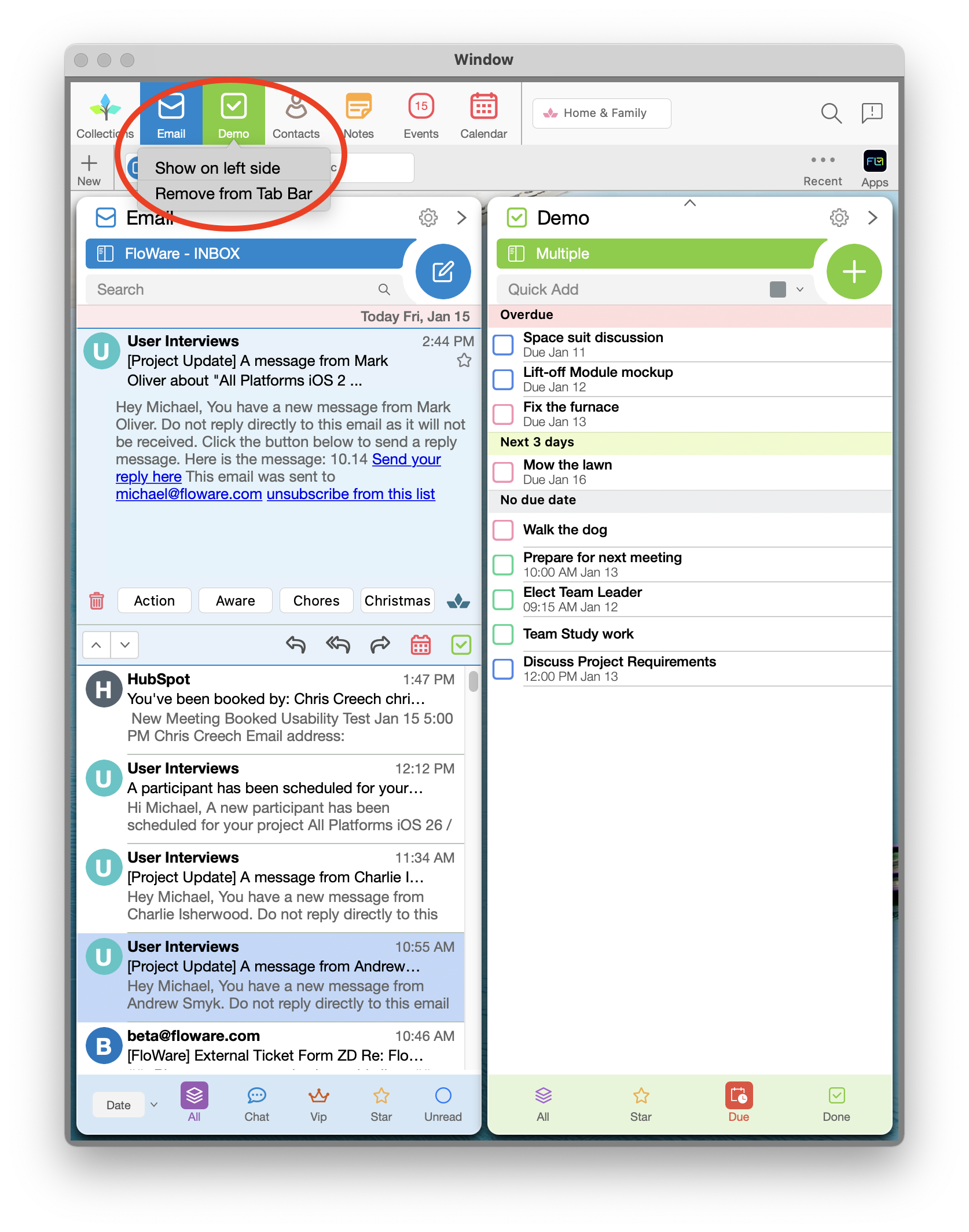
Sometimes it's handy to have two lists open next to each other. From the Tab bar at the top, just right-click to add a list to the left or the right.
[Note] Coming soon: more than two lists!
Create Your Own Flo Collections
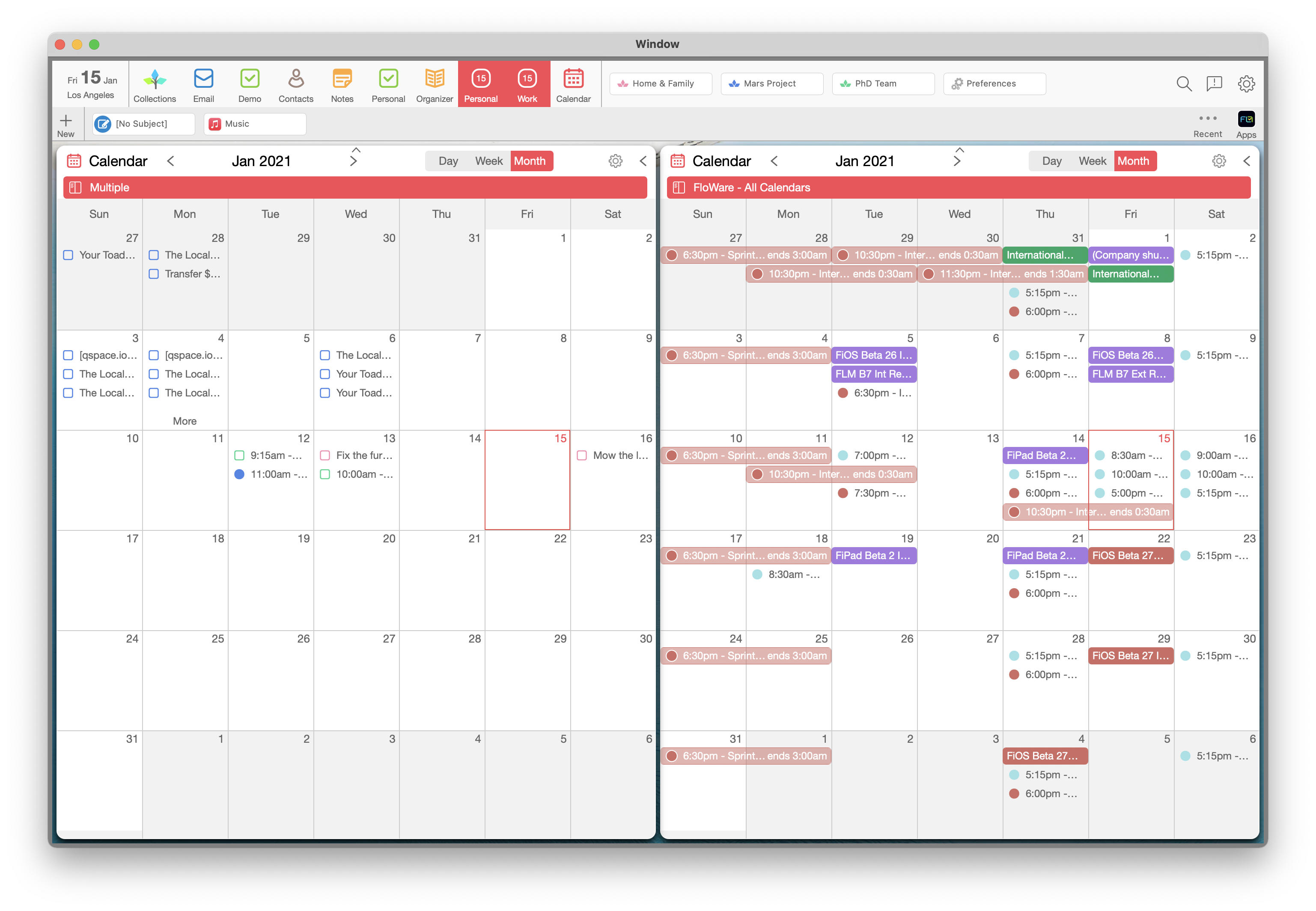
Want to see two different Calendars side-by-side? Easy! From the Collections Menu, just select "+ New" to create a new Flo Collection. Select which Collections or Calendars go into it. Show them side by side, or refer to them separately.
About Those Collection Lists
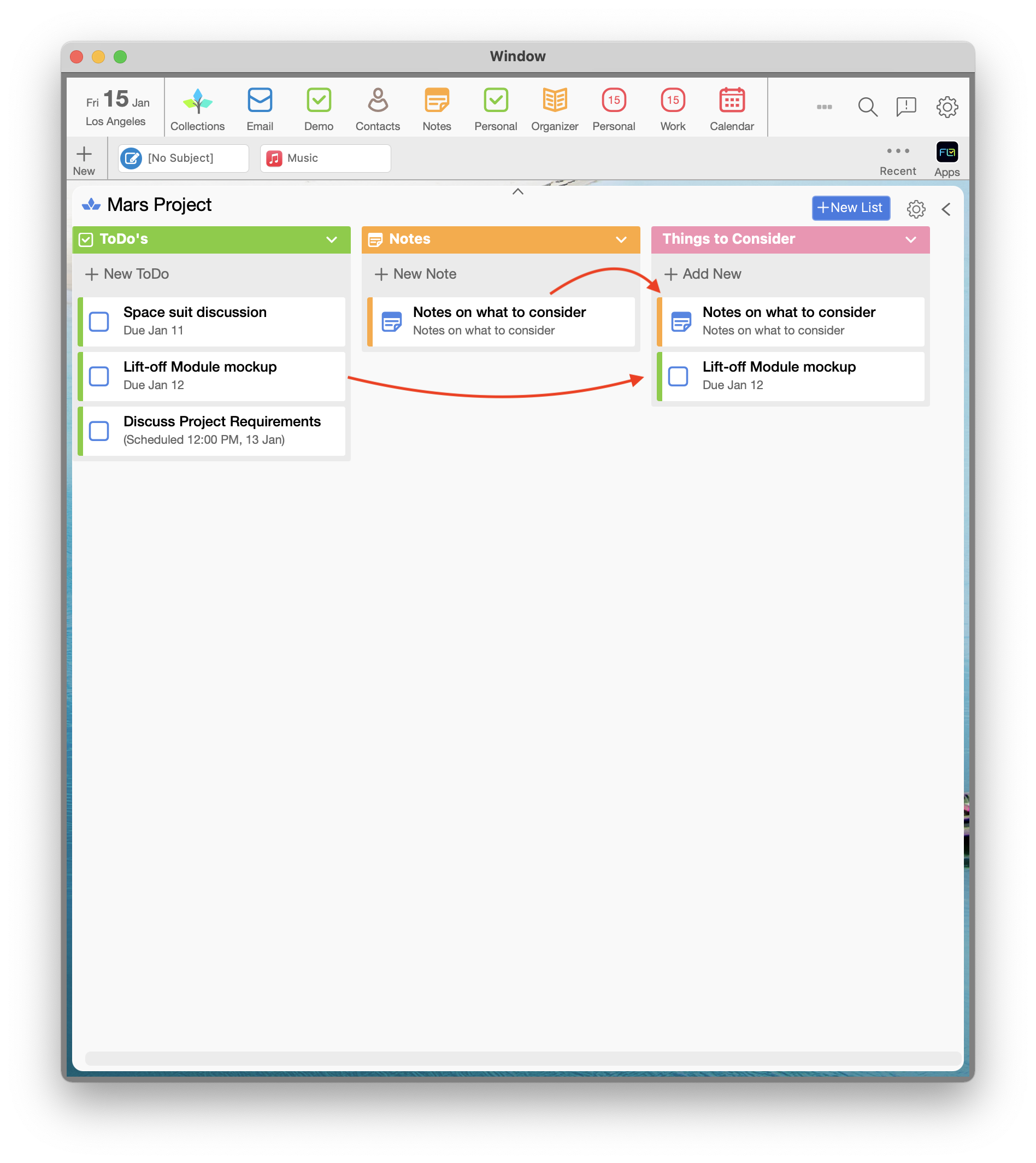
When you expand a Collection, Flo automatically shows all items that belong to it, in separate lists by type. For example, the Mars Project contains ToDo's and Notes so Flo automatically creates a ToDo's list and a Notes list, to keep them handy.
[Tip] You can also create your own lists, and drag items into it! For example here I create d "Things to Remember" list which contains one ToDo and one Note. This flexibility allows you do practically anything. Try it out!
Contact History Will Blow Your Mind
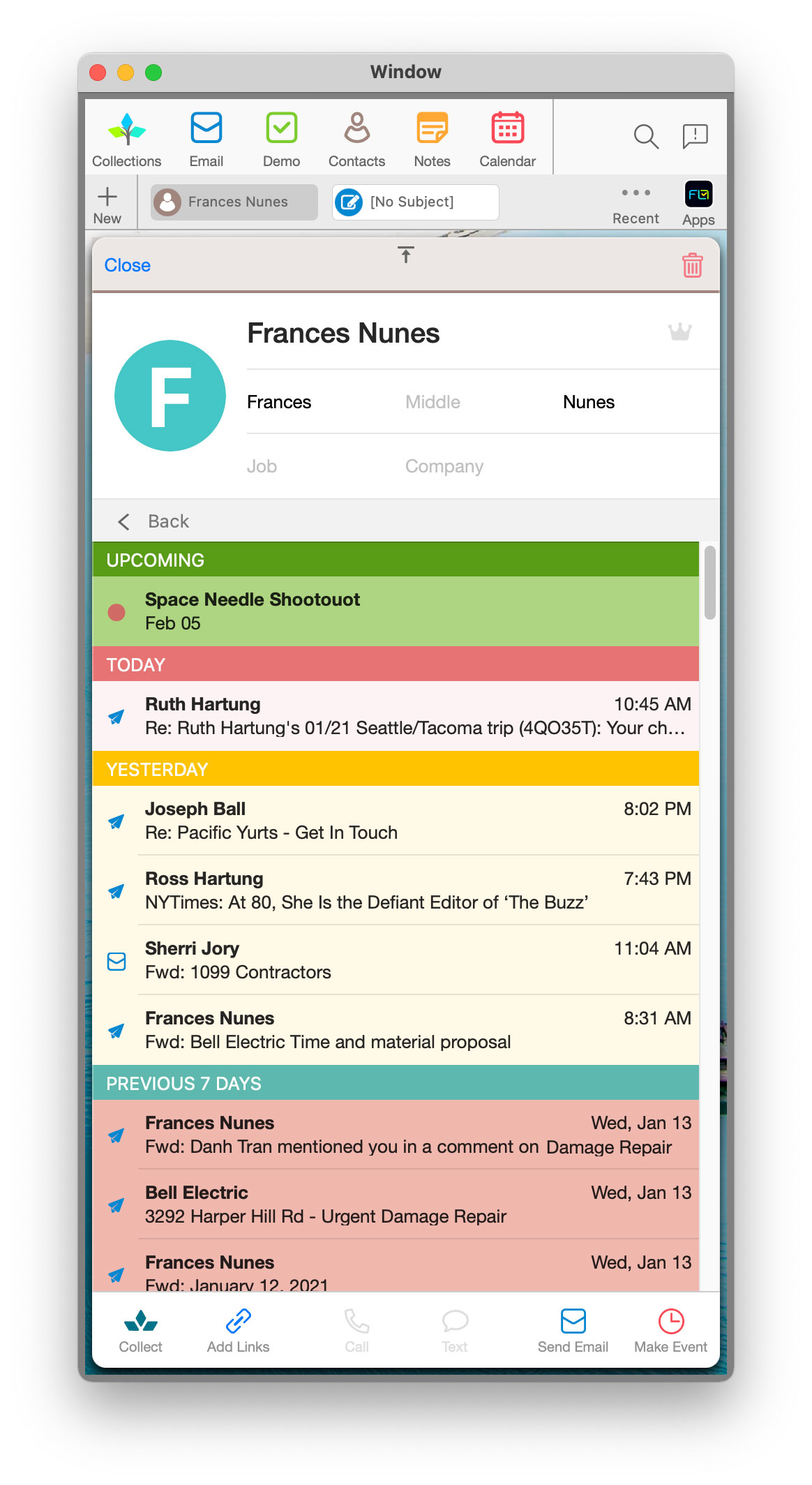
Flo automatically Collects all emails, events, meetings, notes, and anything else associated with a contact , and organizes them in the Contact History. Just open any Contact record, and select "Recent". Are you starting to see the advantages of Collections, yet?
Comments
0 comments
Please sign in to leave a comment.