
- Connect your existing accounts, securely.
- Use it like normal. Nothing new to learn.
- Discover the special features that set Flo apart. There's no rush, but hurry: you'll never go back.
Flo is a full-featured productivity application that helps you to connect all of your different pieces of information, all in one app, synced across all your devices. It is easy to use because it features components that are familiar to you - email, calendars, todo's and reminders, notes, and contacts. But for the first time ever, everything is connected and organized in one place.
Start simply by connecting your existing accounts and using the email and calendars like you would normally. Soon you will discover the many features that make Flo very, very special. Read on for a few tips to get started.
Connect Your Accounts - Securely
When you sign up for a free Flo account, you are automatically given an email account that includes calendars and other tools.
You can connect your other accounts like Google, iCloud and Yahoo as well. This allows you to bring in your existing emails, calendars, and contacts seamlessly, and use them in concert with Flo's great features.
Unlike other email clients, Flo does not track your usage and sell that information to others. Flo connects to your external accounts using the security protocols established by those providers. Flo has no access to any of the data in your accounts.
Use It Like Normal
Flo Email is just like any other. View emails from multiple accounts, all in one module. You'll find it very familiar. There's a lot more to it thought, but start with the basics.
Same with the Flo Calendar. Depending on which device you are using, you can see calendar events in a scrollable agenda, or in day, week and month calendars. You can even open multiple calendars on the Mac version.
You will find Flo Notes to be very familiar with full formatting and you can drop in media anywhere into a note.
Flo ToDo's is a familiar task list that can be filtered in different ways to help you manage your lists and reminders.
Flo Contacts is easy to use and can import directly from your Google and Apple lists.
Unlock Cool Features
Flo has so many features, we had to hide them. That's right. By default, we intentionally made available just the 'plain vanilla' features visible that you would expect from a basic email application, or calendar, or notes app, or todo list - so that you can get started using them without any learning curve. Once you're ready, check out the Settings and discover not just our special sauce, but a whole smorgasbord or special productivity features like Conversation mode, Bear Track, Auto-scheduling, and more. Check out our article Flo 102 which highlights just a few.
Now, Shift Into Overdrive
Collecting Things
You organize your emails into folders, right? And your meetings into different calendars, right? Same for notes, todo's, and even your browser bookmarks. But they're all separate, aren't they? Why? Flo Collections allow you to use the same categories for all these data types. For example you can add any email, meeting event, note, task, contact, web site, document, or media file into the same "Work" collection. You can add the same item to multiple collections - something you can't do with the old "folders" paradigm in Windows and Mac OS.
To get started, we have created a small set of Collections for you. You can change their names, or create your own Collections. Now try adding items to those Collections. Discover the different ways to view them. As you build out your Collections, you'll see their power and how much time you can save.
Learn more about Collections here.
See a few tips on Collecting here.
Linking Things
You open an email. After reading the email, you need to create a Note, or a few ToDo's, or a Meeting. Flo automatically creates links when you create new items from an existing one. That way, for example, when you are in the middle of a meeting, you can click on the event in your Calendar and follow the link back to the email for reference. And from that meeting you can then create a (linked) note with details about that meeting. And from that note, you can generate (linked) todo's. It's all automatic. You will see quick-tap buttons all over the app, and in the iPhone and iPad versions, you can create linked items by swiping. Try it out!
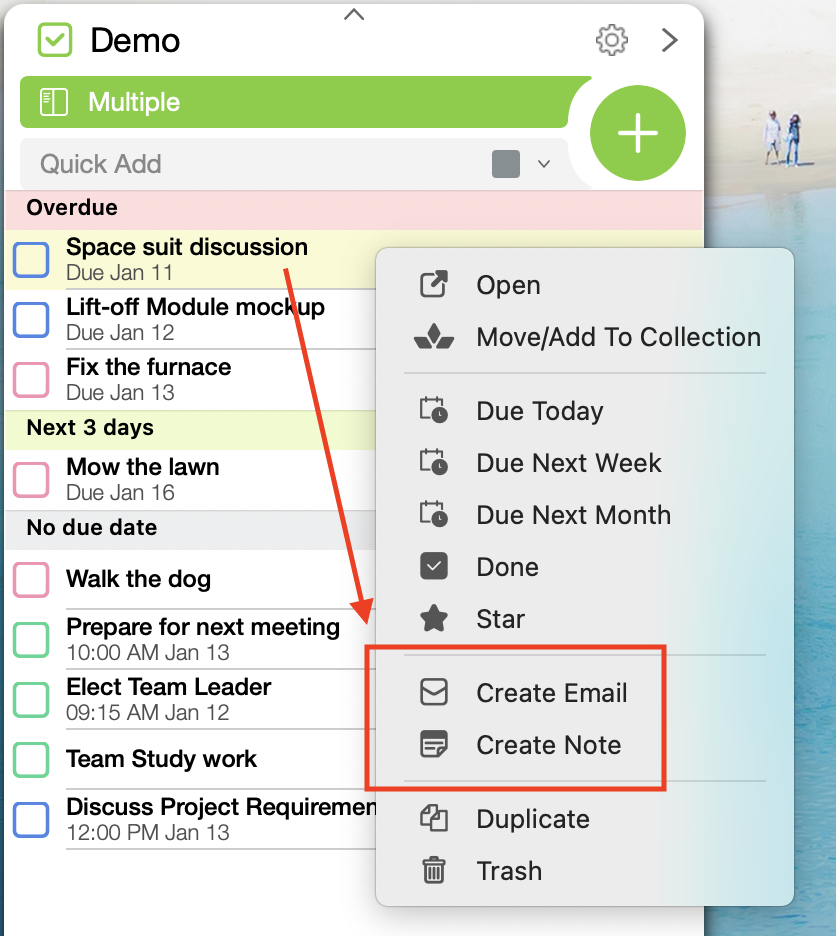
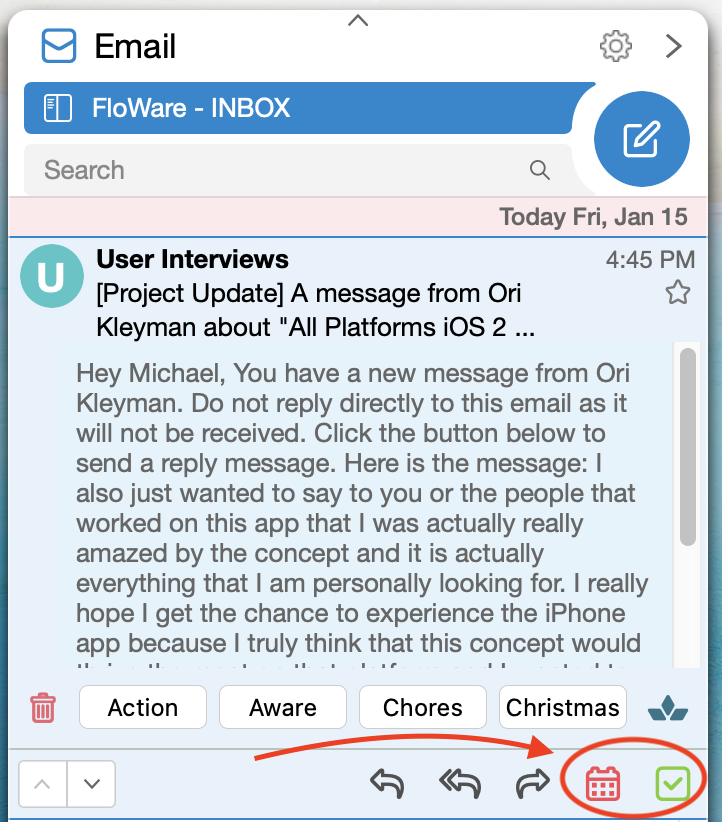
Swipe, Drag, Drop
Collecting, Linking, and Organizing is easy just by swiping on your iPhone or drag and drop on your Mac. For example, you can drag a task directly into the calendar to schedule it or to generate a due date. You can also drag an email onto any calendar, to schedule a follow-up so that you won't forget.
Desktop Management
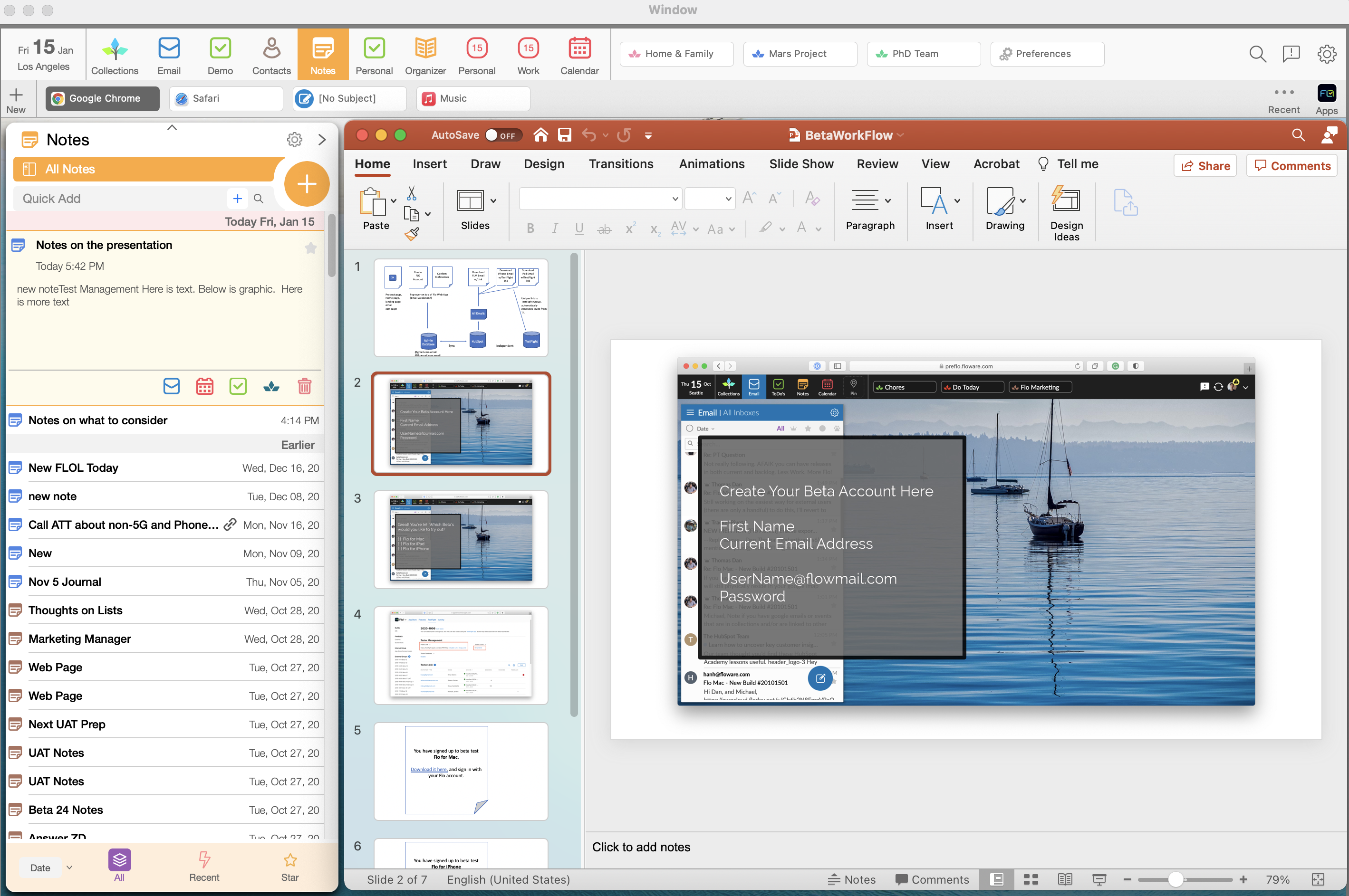
We recognize that you have different ways of working, and different devices including external monitors. Flo is set up for all your needs and has three different views. Desktop View is full-screen and lets you open your other applications right inside Flo. If you have a Flo List open already, then opening another app will perfectly position it alongside, so there's no wasted space.
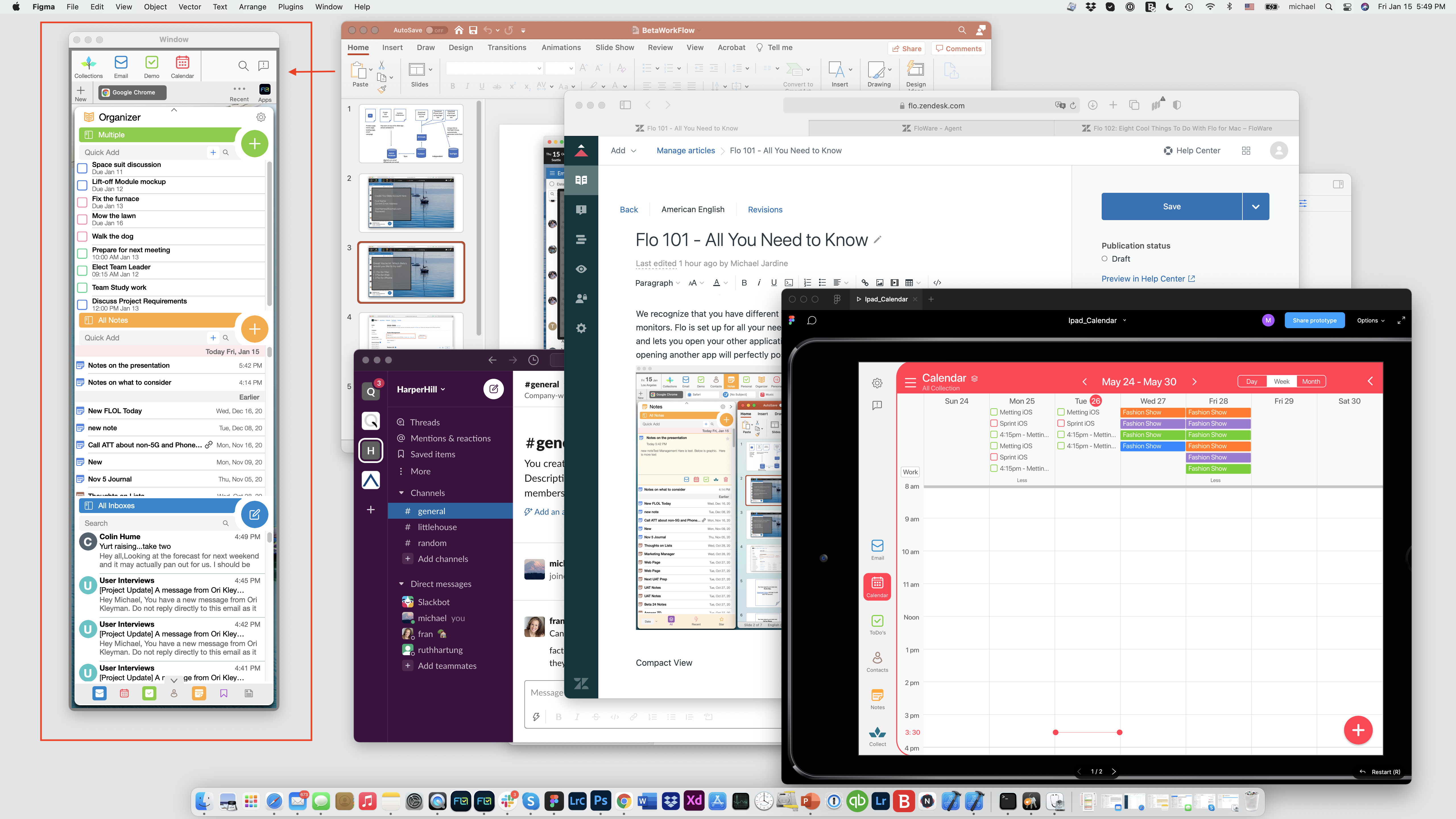
Compact View for Big Screens
If you have an external monitor and need to keep multiple apps open, you can shift Flo to Compact view and use it right along side everything else.
Playlists for Work and Play
Comments
0 comments
Please sign in to leave a comment.