
Note: Follow these instructions carefully.
IF you need to delete your Flo Mac Database, here is how to do it.
1. Close Flo on your Mac. Make sure that the Daemon is also not running. You can check by opening the Activity Monitor (search in Spotlight) and typing in "Flo" as shown here.

If you see Flo is still running, close it again. If you see that FloDaemon is still running after you have closed Flo, you can close it here by selecting it then clicking on the "X" icon on the top left, then chose "Force Quit."
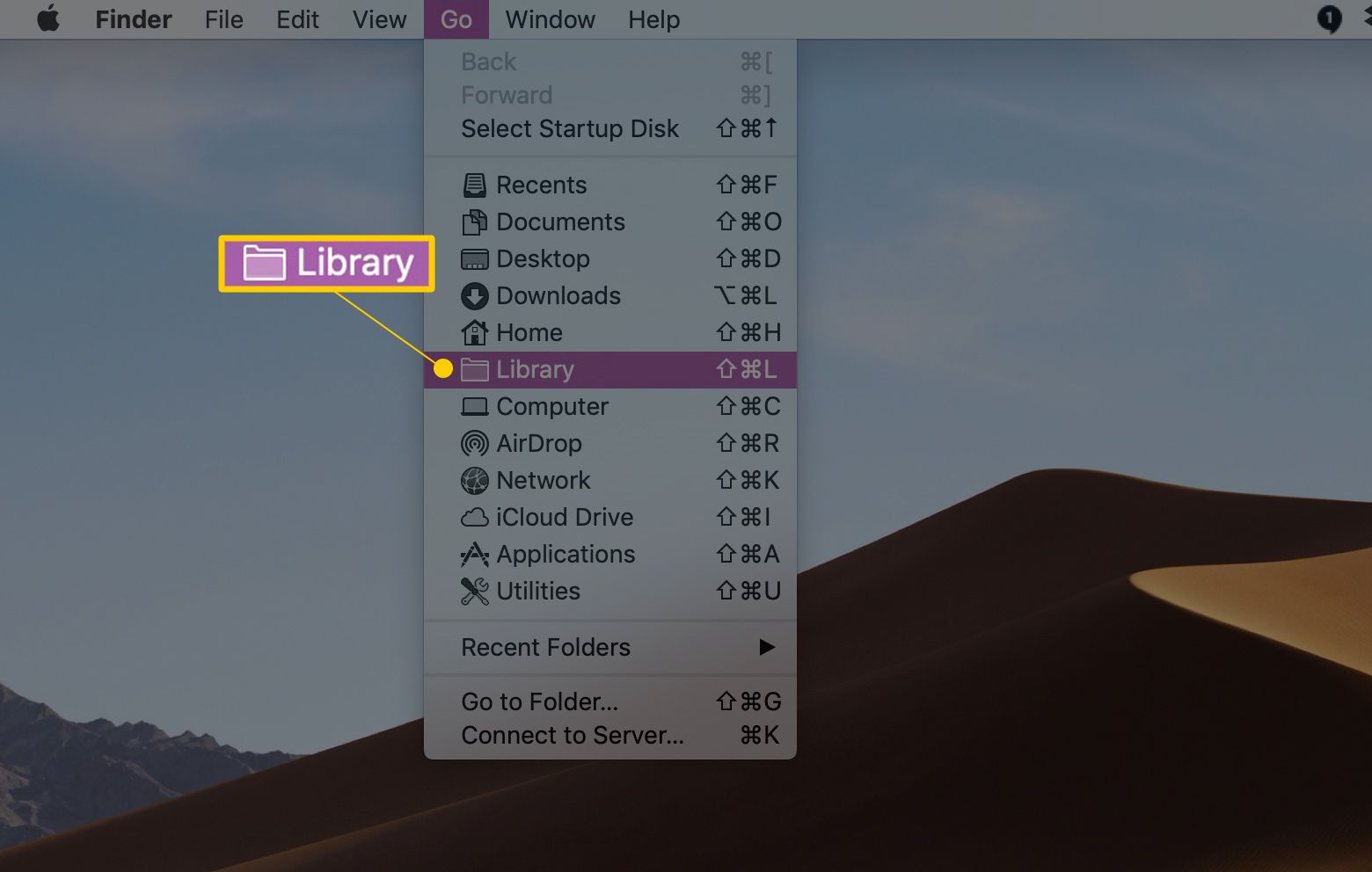
2. Open Finder. Holding down the "Option" key, click on "Go" from the Finder menu then select "Library", as shown here.
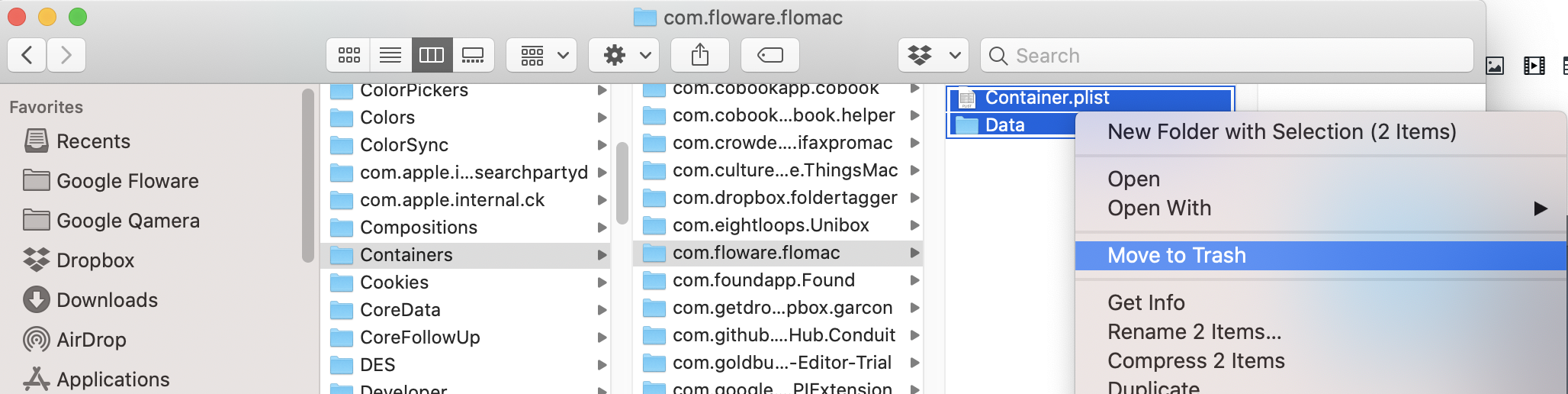
3. In your Library, Navigate to Containers, then select the folder com.floware.flomac as shown below. Send it to the Trash.
To confirm, the contents that you send to the trash are a file called "Container.plist" and a folder called "Data"
4. This will remove the Flo database from your Mac. Don't worry, the next time you start Flo, it will start as if you have downloaded it for the first time. Once you connect to your account, your data - which is always stored on our servers - will automatically start to download and syncronize. This may take some time.
5. Don't forget to also re-connect your external accounts such as Google Mail and Calendar, and iCloud. Note Flo does not have direct access to these and the only way it can integrate your data is AFTER you validate those accounts, individually, on each device that Flo is running on. This is for your safety.
Questions? Shoot an email to support@floware.com
Comments
0 comments
Please sign in to leave a comment.